Wednesday, 10 December 2014

Download The Full Turbo Documents Scanner version 1.2.5 apk

Mobile scanner is an important app every Android users should have and other mobile users. Nowadays is not when you are running up and down looking for a computer section just to scan a document, maybe you might be in a hurry to submit a document to a company for work or to institutions for an admission. TurboScan turns your phone into a multipage scanner for documents,receipts, notes, whiteboards, and other text. With TurboScan, you can quickly scan your documents and store or email them as multipage PDF or JPEG files.
Download>>>> Android turboscan for android cracked

FEATURES:
• Automatic document edge detection and perspective correction
• SureScan mode for very sharp scans
• Ultra-fast processing (under 2 seconds per page)
• Document naming, storage inside the app and search
• Multipage editing: add, reorder, and delete pages
• Copy pages between stored scans
• “Email to myself” feature for quick emails
• Email document as PDF, JPEG or PNG, or save to camera roll
• Arrange multiple receipts or business cards on a PDF page
• Open PDFs or JPEGs in other apps like the free Dropbox app (or Evernote, SkyDrive, GoogleDrive app, etc) to send to clouds, or fax apps
• Printing via Cloud Print or other print apps
• Instant one-tap brightness, rotation, and color controls
• Compact attachments with adjustable size
• Note: if your flash over-saturates images or makes them blurry, please change the flash option in app Settings

How To Scan With TurboScan
*lunch turboscanner, make sure to place the document you want to scan flat on a table or any smooth area. 

*Snap the document or chose from your gallery if you already have the document as an image, a menu will prompt for you to adjust the document before applying a scan on it, there you can chose how the color will be. 


*after the above tap on next to finish your work, but they are many options like paper type and other things which you can learn how to use at your convenience time.
Happy blogging.

Tuesday, 9 December 2014

The Best Three URLs Shortener App For Android

Hello hope you all are enjoying the season?the month of Christmas is usually the month when people travel to see and be with friends and family. As we wait to celebrate the season, I will like to share some important URLs shortener app and how to manage it.
Url shorten has been the best way for bloggers and Website owners to shorten and Manage long URLs , making it more effectively for them to share their link on social media. Below are some thing you need to know about URLs shortener app.


Here are some this you need to know about URLs shortener app:
1.It make links more manageable
2. It can track and compile click data of viewers.
3.They  provides more useful features
4.Its a great impart to url sharing
5. They promote URLs sharing on social networks.
6. It saves a lot if time
Google URL shortener is the fastest and best app to shorten URLs and get their click analytics, making it easier for users to share link quickly on the go. It sync your Google account to get all necessary information to keep you going.
kenineantwork URLs shortener
This app is a great app with amazing features,these app you can shorten your URLs in a different ways such as:
* is.gd
* goo.gl (with and without Authentication)
* bit.ly / j.mp (with and without API Key)
* sck.pm
* tinyurl.com
* to.ly
* ur.ly
* urlr.eu
* yourls (own installation with signature)
goo.gl URL Shortener is the perfect app for the complete management of goo.gl, the Google URL shortener. You can shorten your long URL, track your short URL history and check detailed analytics for every goo.gl short URL.,
I classified the above listed as the best 3 URLs shortener app so far, but if you have any other one, please feel free to share using the comment box

Monday, 8 December 2014

Basic Method To Improve A Computer Speed

Is your computer system slow? Do you want to improve your computer speed? If yes. you are on the right place . well I understand how it feels to have a slow computer, that's why I wrote this simple tips to help you out, just seat back and read through it.


Computer Start Up Programs.
The important step to speed up your system is to reduce the number of programs running on system while booting, you can improve your computer speed by disabling some unused programs or background running programs on your system.
Virus Scans.
This is an important thing to consider Mostly, some computers comes with with Antivirus but if not you can find low-cost as well as free antivirus programs on the Internet. These will usually scans your computer hard drive for potential virus infections in 45 minutes or less, you can even time it to scan your computer system for every 48 hours.
Scan The Windows Registry.
The registry is the place where all vital and necessary files that help in Windows start up are stored and key entries for software installations are made . you can fix some issues with RegCure. ReCure is an app, that's help a computer user to recognize unwanted files and organize important files efficiently, I recommended you scan the registry at all time to keep it clean and sound.
Uninstall Unwanted Programs .
There are a number of unwanted programs running on every computer which slow down it performance. It is highly recommended to remove some unused programs to free valuable resources of your computer. All you need to do is to go to your control panel, click on uninstall and use add remove program menu to uninstall unwanted softwares.
Perform Disk Defragmentation.
Mostly on all computer system files are scattered in different parts of the computer. Disk defragmentation is the solution to clean up all the mess and tidy up all files and folders on hard drive. Disk defragmentation option is available under programs and system tools section. It may take an hour or more to complete the process but the performance will increase after rebooting your computer system.
Hope you find this useful?

Friday, 5 December 2014

The Top 5 best file hosting/Sharing site

We all know that the Internet is a global network connecting millions of computers. More than 100 countries are linked into exchanges of data, news and opinions. The Internet  has made life easier for individuals across all nations, providing vital information to people based on their interests.
File hosting service or site is designed to host user files. It allows users to upload files that could  be accessed over the Internet from a different computer, tablet, smart phone or other networked device, by the same user or possibly by other users who intend to have the same file as the user who uploaded it. 

They are hundreds of file hosting sites, but I will list the top 5 and how it functions.

dropbox.com
Dropbox was recorded as the top file hosting site or better you can call it file sharing site which ever way you want,   Dropbox allows users to create accounts and manage  files on smartphone, PC, tablet and iPad making it easier for users to share files on the go without much stress.

mediafire.com
Mediafire works  like Dropbox, it allows user to upload and share media all over the nation,a user can list to their media which as music video online without the need of downloading.

4shared.com
4shared is another file hosting site which grants users access to upload and share files among friends and family, it has a free and pro version. The free version offers 15gig of storage space while the pro offer unlimited storage space and a direct downloading link.

drive.google.com
Drive is a file hosting/sharing site owned by Google, it's the best site for file sharing , because you need to grant access to people before they can be able to download the file you hosted/upload on your Google drive. I quote it as the best for document saving

onedrive.live.com
This is a Microsoft file hosting site which comes with Office Online, so you can create, edit, and share documents regardless of the type of device you’re working on... It features is almost the same with Googledrive.com.


Tuesday, 2 December 2014

Simple Method To Jailbreak iPhone 6+, 6, 5s, 5c, 5, 4s Running iOS 8.0 - 8.1 using Pangu8 on windows and Mac

This is the best method to jailbreak iPhone 6 Plus, 6, 5s, 5c, 5, 4s on iOS 8.0 - 8.1 using Pangu8 on windows and Mac. Many have found it more difficult to jailbreak their iPhone for one reason or the other, but in this tutorial I will clarify everything for a better understanding, before I forget if your device is running on the previous version of IOS update it for this to work better for you.


Requirements

  • A Computer
  • Your Mobile Phone
  • USB Cadle
  • Pangu  for Windows or Mac

Note I recommend you take a backup before proceeding with this tutorial, to avoid losing an important file on your device
Below are the simple steps to take 

The first thing to do is turn off Find my iPhone, which you can locate at the Settings. Choose iCloud from the Settings menu, then select the Find My iPhone from the iCloud menu and turn it off


*When you are done with the procedure above, connect your device to your PC,

*Turn ON Airplane Mode on your device

 *Extract Pangu and Right click on the Pangu tool to Run it as an Administrator


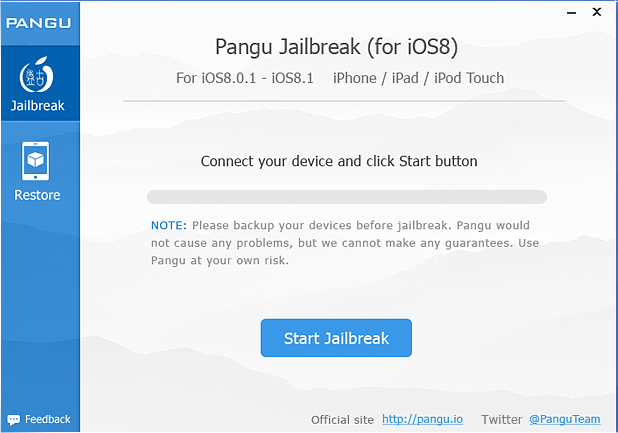
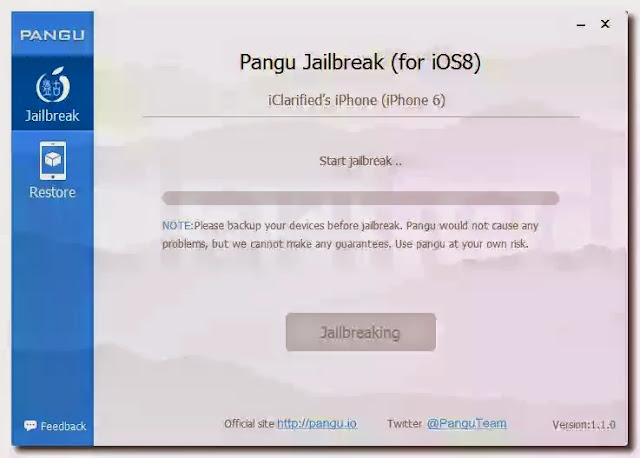
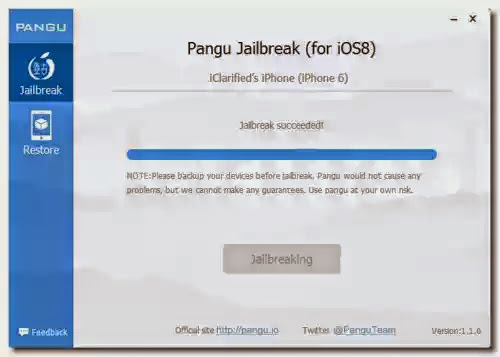
*Once your device is recognized by Pangu, click Start Jailbreak as showing on the image below
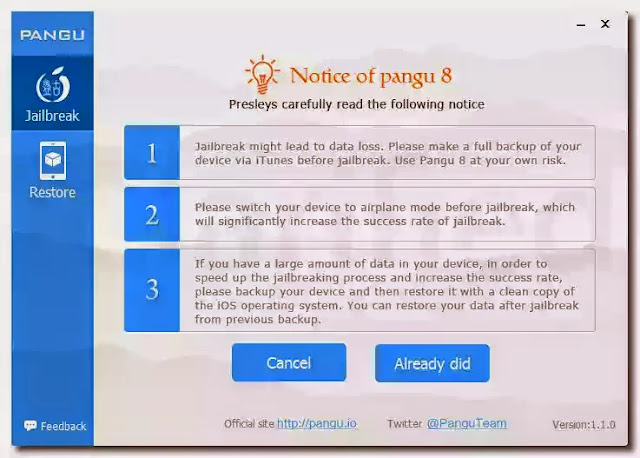
*Read the notice of Pangu and accept it by clicking Already Did 
Your device will reboot automatically don't worry, just sit back and watch it come up. Once the jailbreak has completed successfully, your iPhone will reboot and a Pangu app and Cydia app will display on your Springboard. Now enjoy your device and customize as you wish


Thursday, 20 November 2014

Glo Introduced A New Mobile WiFi


Become a service provider in your area, recently Glo introduced a new Mobile WiFi that enables you to share your data bundle with other devices, which as, Computer, Android, Tablets, window and any other wireless enabled cell phone. The new Glo mobile WiFi can share network with 8 devices and still maintains its bandwidth speed. It was sold at 18,000,  but now Glo sells it at N15, 000. With  6 months of free data bundle. This offer is for you as a Businessman, Bloggers with multiple computer, family and Roommates


You can still get MTN Mobile WiFi at N18.000 with the same capacity as Glo

Here are some advantage of this mobile Wife®

It improves battery life, because normal mobile data connection reduces battery life easily

It helps you to stay connected on multiple Devices

It's faster and user friendly

The Mobile WiFi can be changed and it has a long lasting battery capacity

Frequently Asked Questions®

== Can this be hacked for free browsing?  No for now

== Can someone add a password to it to prevent other people from using the shared network?  Yes, you can easily do that


My Job Is To Make The Internet Easy For You,


Monday, 17 November 2014

How To Save A Web Page As PDF On Uc Browser ,Chrome And Opera Mini


Hi, In this tutorial, you will learn how to save web page as PDF on the Mobile Web browser such as:
© Uc Browser
© Chrome
©  Opera Mini


Saving Web pages as pdf has not been easy for any mobile user,but I will teach you how to do that step by step with a screenshot to help you comprehend it better. We will be starting with Uc browser

How To Save Web To PDF On Uc Browser.
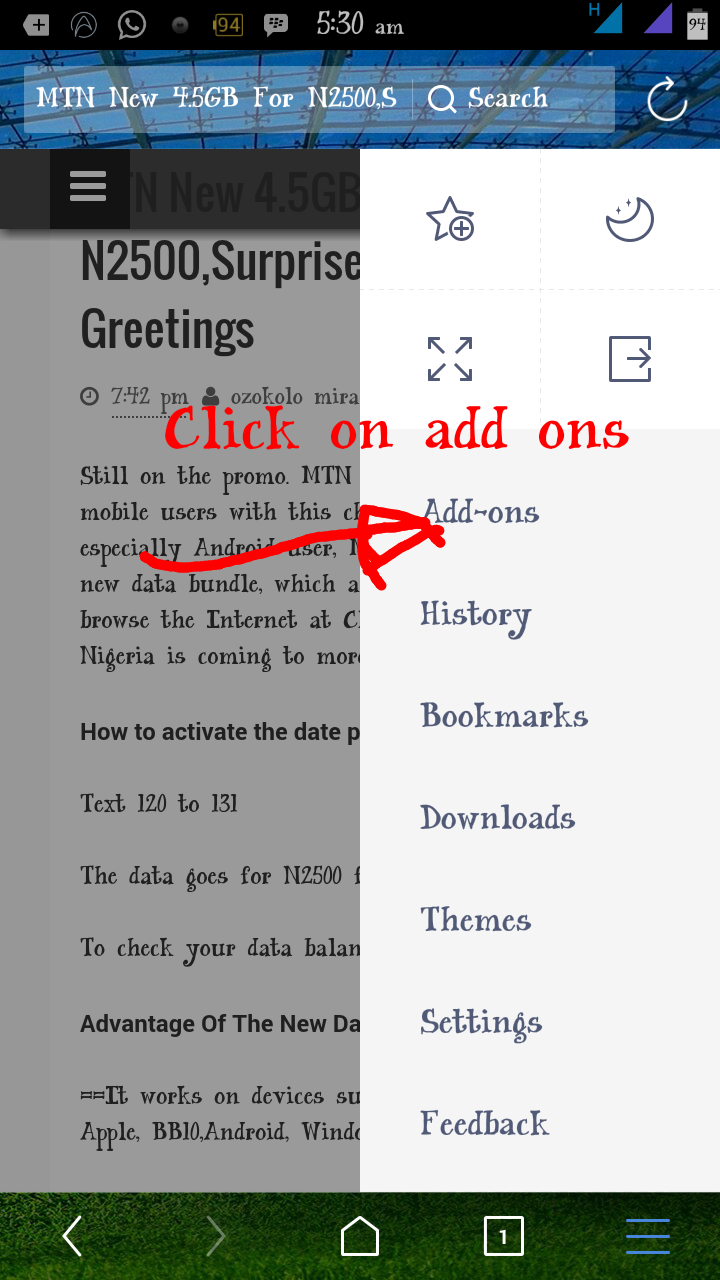
**First thing you will do, is opening the uc browser and type in the url of the page you want to save as PDF or Google it, be it Assignment Or Article. When the page open, click on the menu bar as showing in the image below.


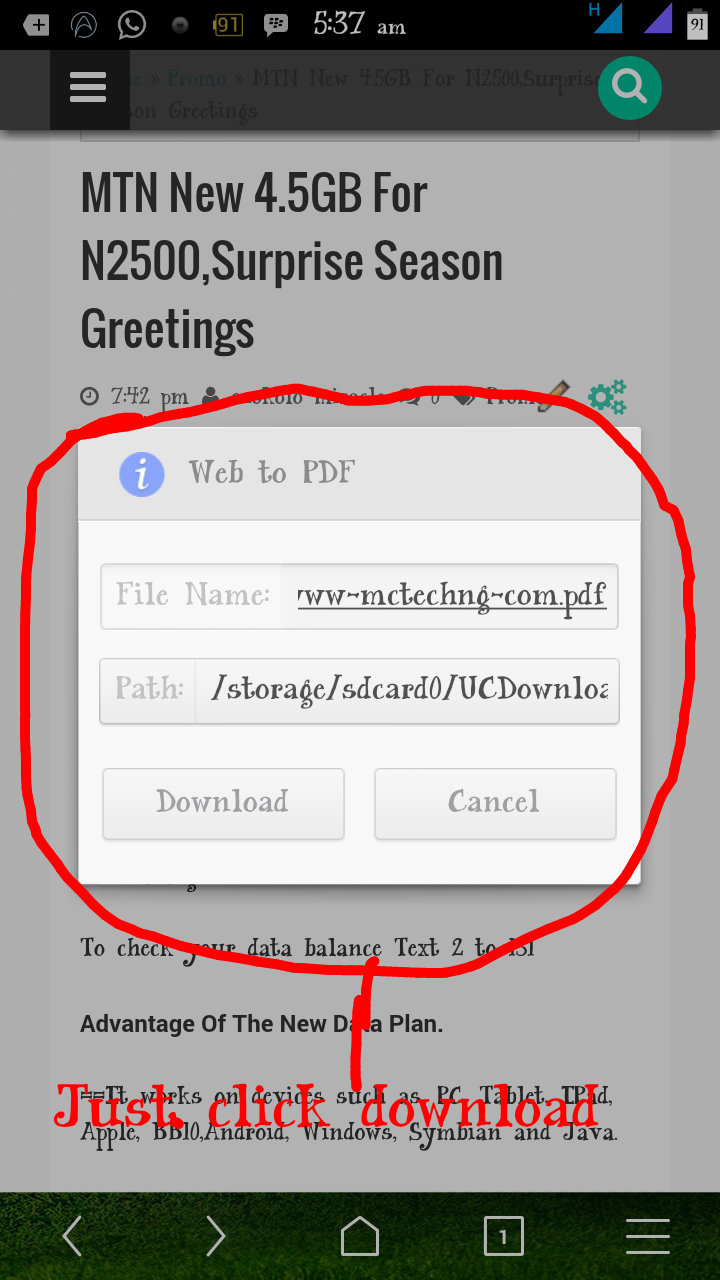
**Click on Uc menu, select add_ons box the one highlighted with plus symbol. (You are seeing the Web to a pdf icon on the S. S because I already have it) once you click on the add_ons, a prompt will come out with a list of many  other add_ons, search for Web To PDF icon to download. It will redirect you. To play store for the downloading


**After the downloading and installation is complete, it will automatically display on your uc add_ons tab. All. You have to do now, is to click on pdf icon to download and save the Web page in question.


How To Save Web Page As PDF On Chrome
The chrome method seems to be more easy and straight.

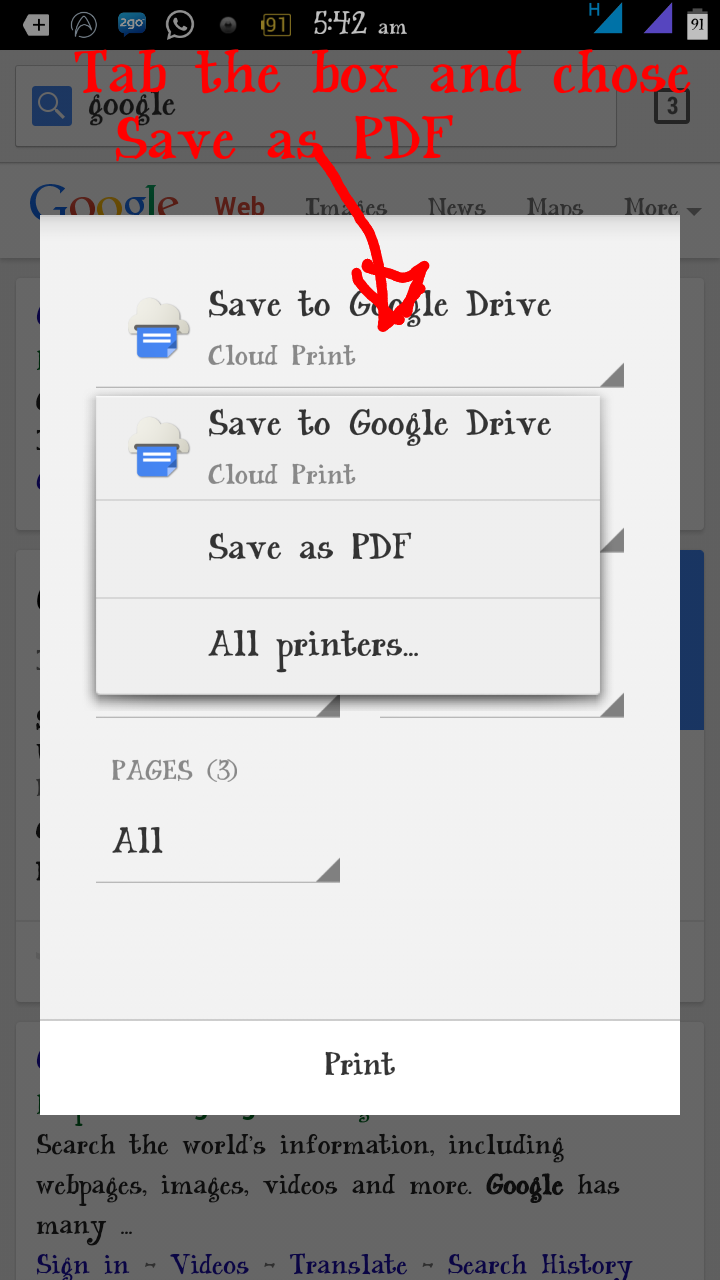
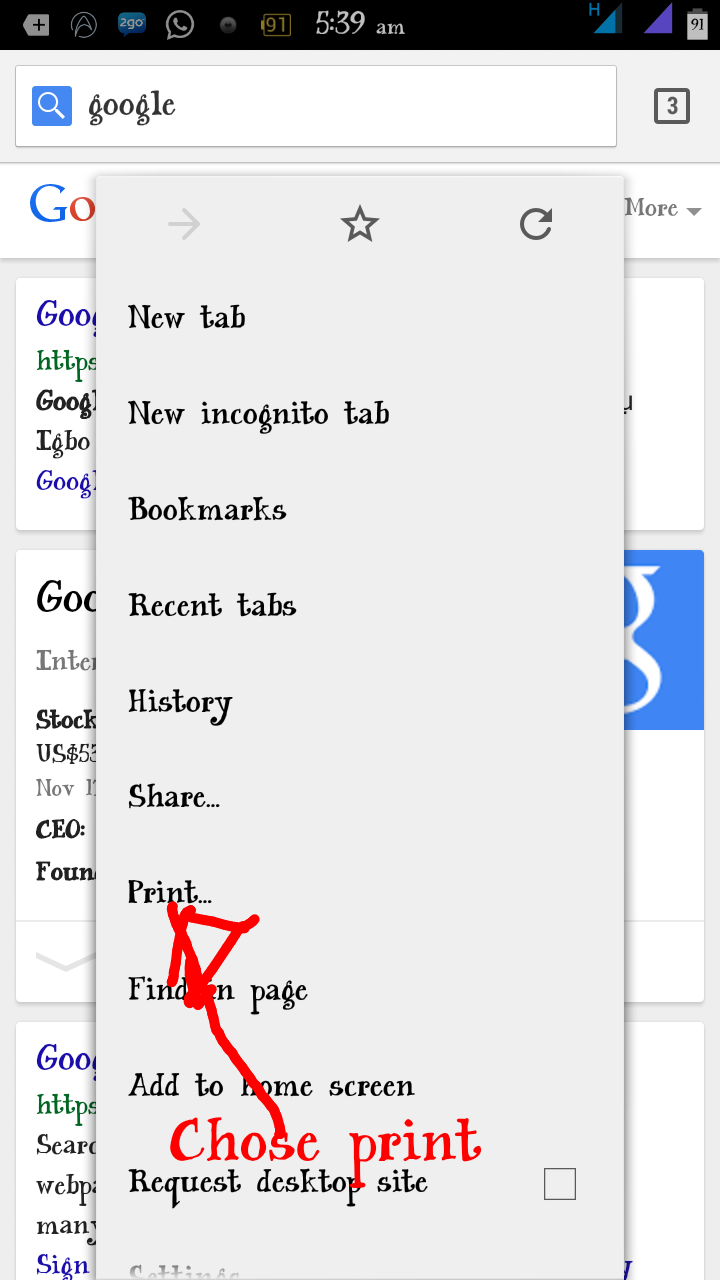
**Open your Chrome, browse the Web page you want to save, press the option key on your phone to prompt the list of options available. When it opens, click on print


**A prompt will come up for you to select how you would want it to save, click the box to select (save as PDF) and as well select other necessary thing you would want.

**After the above procedure is done, click save, a prompt will come up asking you where you would like to save your file, chose a download to save it

How To Save Web To PDF On Opera Mini

**They is no specific mother for Opera, you have to copy the url of the web page you want to save to uc browser and do the above procedure, which is uc procedure.

Hope this is helpful?

If you have any questions, feel free to share it on comment box thanks.