Tuesday, 19 May 2015

Things To Do After Rooting Your Infinix Hot Not And Other Android Phone

I will be teaching you some important things to do after Rooting an Android Device with Kingo root and Vroot etc., it is very important to consider the above. Most Android Phone got Bricked due to installation of none effective superusers, its weighty to replace kinguser and other Chinese superusers with SuperSu after rooting.
Things To Do After Rooting Your Infinix Hot Not And Other Android Phone
Why should I replace kinguser and another with SuperSu?

You should replace kinguser and other related Chinese superusers with SuperSu, because SuperSu is the most standard  superuser to use on Android Phone and it allows advanced management of superuser access permission to all installed apps that required root access.

Note, always take a backup for a safety measure.

How to replace the kingo root, kingoroot and Vroot with SuperSu.

Please read the below carefully and perform it according to the Steps

Step1. Download and install SuperSu from playstore

Step2. Download and install Root explorer or any Root Browser from Play Store

Step3. Launch the SuperSU app and grant root access to SuperSU, update the brain

Step4. Open Root explorer or any other Root Browser you have and grant root access.

Step5. Go to root >>>System folder >>Apps.

Step6. Scroll to find your installed superuser app apk in the app folder and delete.

Step7. Reboot your Android Phone

Step8. Launch SuperSU, go to Settings and tap "Install SuperSU to /system". To automatically make SuperSu a system app

Step9. After reboot your Android Phone.

You have successfully replaced kinguser with SuperSu.,

Tuesday, 5 May 2015

10 Steps To Improve Your Samsung Galaxy S6 Edge And Other Android Phone Battery Life

Unfortunately many Android user are having battery issues, on this post i will list out some tips to improve your battery life.
10 Step To Improve Your Galaxy  S6 Edge and other Android phone battery life
Carefully study the below tips and put it into play and it will work perfectly for you, and you will love your Android device the more


10 Steps To Improve Your Galaxy  S6 Edge and other Android Phone battery life.  

1) You should always use a dark background, like a black wallpaper, brown and gray

2) You should avoid auto brightness, it dose not help in saving the power just adjust the brightness to the lowest stage

3) Always remember to turn off the vibration.

4) Make sure to turn off the WiFi/data connection, Bluetooth when the phone is not in use, and don't use 3G connection all the time.

5) Enable the battery saving mood on your phone battery app, (from the settings.. Tap on battery to see the option)

6) Avoid load widgets on the home screen, especially those that are connected to the internet like weather widgets Etc.

7) Ensure all your app is updated, because it helps battery life

8) Turn off auto-syncing and do it  manually for time to time

9) Turn off location services when is not necessary, but you should leave it on sometime in case you miss your way

10) Set your phone to kill all active app once the screen light is off.

Please share with us your own special where of improving your battery life 

Monday, 4 May 2015

How To Flash Lollipop ROM For Infinix Zero

This ROM is a customized Lollipop ROM and it plays almost all the function of the original Lollipop ROM, The custom ROM is dedicated to the  Infinix Zero user and some Xperia users, in this tutorial i will teach you step by step on how to flash the custom ROM on your Infinix Zero.

How To Flash Lollipop ROM For Infinix Zero
Before we roll into the main aim of this tutorial, i would advice you to backup your Infinix Zero and make sure your battery is fully charged or let it be within 80% to 70%.

NOTE I am not responsible for any brick or harm this may case to your phone, you are doing this at your own risk

INSTALLATION ON HOW TO FLASH LOLLIPOP ROM ON YOUR INFINIX ZERO 

Ensure your phone is rooted and you have cwm recovery installed on it 

==> Download Lollipop ROM https://docs.google.com/uc?id=0B-U8LjBZWpCBU0NyTmV0WlpxSE0&export=download and move it to your SD root folder
==> Boot your Infinix Zero to recovery mode
==> Wipe data/cache and dalvik
==> select, install, update from SD and select the ROM to flash
==> After you have successfully flashed the ROM, Flash SuperSu
==> Reboot and wait for the phone to boot up, it might take upto 15-20 minutes to boot.

Some Bugs On The ROM 

==>The ROM dose doesn't take a screenshot from "Volume UP or Down + Power Key" but don't worry, you can use any of the screenshot shot app
==> The massage app in the ROM  dose not select sim type. But you can download and Install Infinix Zero stuck MMS App== https://docs.google.com/file/d/0B8vX_un6Sx3COTlFLWFKd2tzSU0/edit?usp=docslist_api
==> Google app such as gmail, playstore and other Google app are missing in the ROM, but the good news is that you can flash GOOGLE APP== https://docs.google.com/uc?=export=download&id=0B71J8j6URmL0TFVtaFZtTDloYWM

Should incase you encounter Invalid IMEI, you can user mobileunlce to replace your imie. 

Get Free 150MB On Your MTN Sim Now

Hello, how was your weekend? I hope it was dazzling and a good story to tell? Today i would like to welcome you to this new week with an amazing trick on how to get 150mb on your mtn sim.
How to get 150mb on your mtn sim now
This trick works on all device, so far you have an mtn sim card on your  cell phone. Below is the step to take


HOW TO GET FREE 150MB FROM MTN
Send the keyword  App to 131. And you will get a congratulation message from mtn..

Sunday, 3 May 2015

How To View Desktop Version Of A Webpage On Android Browser, Chrome and UC Browser

Android is incredible and fun, things are made easy within their operating system, you can easily tweak your Android for fun and for good purposes. Have you ever tried to browse the internet in desktop version on your Android device? You know in most cases a webpage won't open clearly because of poor displace of your device, and there's some things you can only do by using your computer.


Right now i will tell you how to view a web page in desktop version with Android Google chrome

=> Download and Install Google Chrome from www.googlechrome.com or from https://play.google.com

=> Launch your chrome and press the option key

=> Check the box (Request desktop site)
How to view desktop version of a webpage on Android Browser, Chrome and Uc browser
=> Then a moment for the web page to reload and it will change to the desktop version
How to view desktop version of a webpage on Android Browser, Chrome and Uc browser
Should in case you want to return to normal mobile version, you can repeat the above procedure and on check the REQUEST DESKTOP SITE BOX.

HOW TO VIEW A WEBPAGE IN DESKTOP VERSION USING UC BROWSER FOR ANDROID

=> Download Uc browser  from https://play.google.com or from www.ucbrowser.com

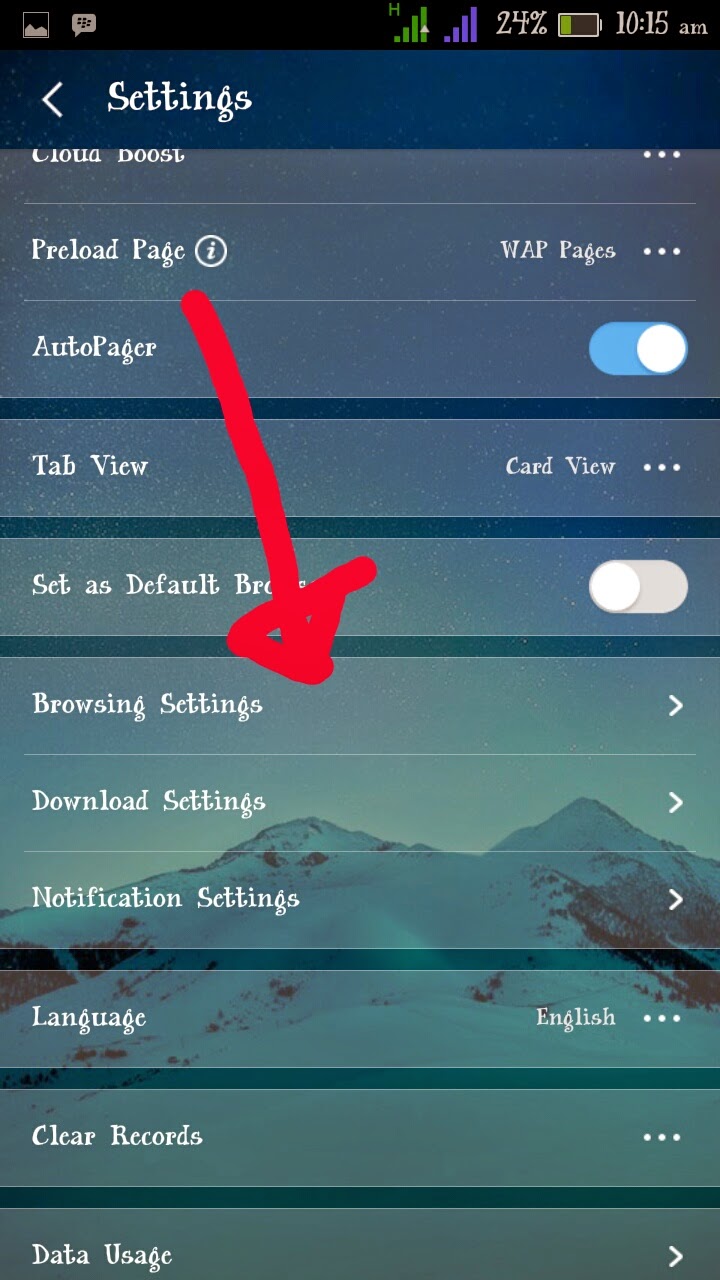
=> Launch your UC browser, press option and slide left, tap on settings, scroll down and select BROWSER SETTINGS
How to view desktop version of a webpage on Android Browser, Chrome and Uc browser
=> Now scroll down and select website preference, a window will open with some list of webpages such as yahoo, google, twitter and other
How to view desktop version of a webpage on Android Browser, Chrome and Uc browser
=> Tap on OTHERs and an option will display... Which is MOBILE and DESKTOP
  °select mobile, if you want to view web pages in a mobile version
  °select desktop if you wish to view web pages in desktop version.
You can as well change the default sites from mobile to desktop version

HOW TO VIEW A WEBPAGE IN DESKTOP VERSION USING ANDROID BROWSER.

There's no difference between Android Browser and Google Chrome, you can perform the same Google chrome procedure above on your Android Browser.

Hope you won't feel lazy to scroll up?... The better I know you are not lazy.

You can share your own idea with me, I love to learn from people

Friday, 1 May 2015

How To leave A Google+ Community On Mobile, Tablet and On Computer

Basically before i start with the tutorial, i will like to explain what Google+ Community is all about and why you should Join it
How To leave A Google+ Community On Mobile,Tablet And Computer

Google+ Community is a group created by Google+ users with the intention to share a common understanding and often the same language, manners, tradition and law. On the other hand, people creates Google+ Community for a purpose  such as

=>Tech Communities
=>Internet Marketing Communities
=>Social media Communities
=>Comedy/funny Communities
=>Inspiration Communities and many more. 

Why Do you Have to Join A Google+ Community?

Google Community has many branch and purposes which it was created, you might be a lover on one thing or the other and the best way to get inspirited by you hubby is to join a Community that deals with your hubby or your needs, so doing you will get to meet some many people of your field that will share ideas and knowledge with you and it might be a great help to you now or later in future.

Why Do I Have To Leave Google+ Community?

Well am not saying that you should leave all the Community you are in, but before you leave a Community, you should be able to differentiate between what you gain from the group. Leaving a Community should base on interest, whether the group offers value to your life or not, weather the group will inspire you or not. After you have come to a concussion you should know whether to leave or to stay in a Community

How To leave A Google+ Community step by step 

=>Login to your Google+ either from a mobile app or from a web browser, tap on the home to draw down the Options, if you are using a computer you should click on home to draw down the options

=>Scroll down careful and tap/click on Communities, a list of Communities will appear for you to select the one you intend to leave.

=>On the Community main menu tap on the three dot located at the right top or you can press the menu key on your Phone, and a list of option will prompt, tap/click on leave Community.

=>A warning menu will prompt just tap/ click leave and you will automatically leave the Community.

Can you share your Google+ Community experience with me? 

Wednesday, 29 April 2015

How To Upload Videos On YouTube Channel From Mobile Phone

Today I will be writing about how to upload video to a YouTube channel using a YouTube mobile application. YouTube is a platform that allows user of various kind to upload and share videos among other users and for business purposes, such as advertising for new product/goods , comedians for new comedy videos , music videos, local news video etc. 
How to upload video on YouTube With Mobile Phone

In the post I will teach you, step to step on how to upload a video to YouTube channel using android YouTube app, with a clear screenshot for a better understanding

Step 1) Open your YouTube application and click/tap on the YouTube menu, it's located at the top right side of the YouTube app as shown in the image below 
How to upload video on YouTube With Mobile Phone
Step 2) Scroll down and tap on uploads, a new menu  will prompt with an option at the top side. 

Step 3) Tap on the upload icon as indicated on the image below 
How to upload video on YouTube With Mobile Phone
Step 4) An option will prompt for you to select a video, select any one you wish to upload and it will automatically State uploading to your YouTube channel. Once the upload is successful, you will get a notification by gmail to inform that your video is ready to SHARE 

Hope it won't be difficult for you to do?