Showing posts with label Android. Show all posts

Thursday, 13 August 2015

New Update From Facebook (Facebookthanks)

Hello this morning as I  was checking on my Facebook notifications, I came across this  great feature from Facebook called Facebookthanks. I was very excited and I decided  to share with you all about the new update and some of the amazing things about it, below is a screenshot of what I saw this morning


So good and lovely, I strongly believe that 99% of Facebook user would love it, not only that. It would drive more user to Facebook, because many people love, appreciation and Facebook being a smart social provider has given that to their users. The most exciting part of it, is that, you can create a thanks video clip on any browser, such as: PC browser, Mobile browser and on the Facebook app.

You can Watch me Facebook thanks  Video  clip
  
The Question maybe  how can one   create the video clip?  Creating your own thanks video clip is as easy as ABC just visit facebook.com/thanks

Please share your thought about this new update  from Facebook and if you have tried the new feature, kindly share your feeling about it. 

Friday, 26 June 2015

Download And Install BBM version 2.9.0.44 With Material Design

BBM  new update is something to write about ,people have being waiting for a day like this, for a long time now .  But today the dreams has come through, Android BBM now have a material design with some cool features

BBM new features is as great as kisses lols such as
>Slide-out navigation drawer
>Floating action button
>Different chat new
>Private chat

This is a great improvement and I believe BBM have something more than this to do in future

How to install the new BBM version 2.9.0.44
You can download it here and install or update yours on Google playstore
>>>Below are some screenshots<<<<
Download And Install BBM version 2.9.0.44 With Material Design

Download And Install BBM version 2.9.0.44 With Material Design

Enjoy and don't forget to tell me what you think about the new update.

Thursday, 18 June 2015

How To Install The New Android M Launcher Prime On Android devices

Nowadays people can equally enjoy what others are enjoying, things like lollipop launcher,NoVa Launcher and Android M Launcher. lollipop, Nova and Solo Launcher first came out as the latest android Launcher and many  people while running into it both paid and free version of it, today I will guide you on how to install Android M Launcher on your device successfully without any error. But before i hit the hammer on the Nile take time to read the features below.

This Is The Features of the Android M Launcher Prime

1.      Support icon theme, compatible with 5000+ third-party icon packs; many live wallpapers and cloud based wallpapers

2.      Able to change launcher desktop and drawer grid size, lock desktop, etc

3.      4 UI Size Mode, easy to change the icon size

4.      4 drawer style: horizontal, vertical, vertical with category, list style

5.      12 desktop and drawer transition effect, there are about 200+ options to customize launcher to what you like, make your launcher personalized

6.      It include handy features, such as cleaner, toggle, torch, favorite apps and more, and you can drag-out Sidebar from anywhere

7.      Features to hide app, create folders, sort app and more, and drawer has Quick A-Z bar to help to quickly locate app; it also support multi groups (multi tabs)

8.      Many features to protect your privacy, such as app lock, lock hidden apps, private folder and guest mode

9.      Power Saver (include CPU monitor, Greenify hibernate, startup management),

10.  Booster (one tap to boost phone),

11.  Switcher, quick to manage all the switcher in one place, more handy then systems

12.  M Launcher provide almost ALL the handy tools that you will need to manage your devices well

13.  Many gestures and Dock icon gestures

14.  Unread Counts/Notifier for SMS, MAIL, Missed CALL, Whatsapp etc

15.  Backup and restore launcher setting and layout; Support import layout from other launchers

16.  Private folder; Super folder

17.  App Lock

18.  Double tap to turn off screen, triple tap to turn on

19.  More Unread Counts/Notifier

20.  More gestures; Icon gestures

21.  More transition effect

22.  Transparent StatusBar Clone for Android 4.0-4.3

Can This Run On All Android Device ? No it can only  run on android ranging from 3.4 and above  see some screenshots below


Android M Launcher prime can be installed as follows

First enable unknown source app from your device settings , go to settings >> security>> unknown source. And check the box, after doing that then install your Android M Launcher and enjoy.....

Second download Android M Launcher prime apk


Wednesday, 20 May 2015

Latest Etisalat And Airtel IMEI Trick For 2015

Today is dazzling, and i will share with you the latest working imie tweaking and how to go about it. I strongly believe that many people have not being browsing for a long time now, due to data and so, unfortunately you most not wait for free trick before you can browse, you can still buy data plan from Nigerian network operators or from a resellers.
Everybody most not be the same, some people have the money to subscribe for their devices while some find it difficult to recharge their line, let only subscribing for a data bundle. I dont know the category you belong, but my concern is to help some broke dude.

Let roll to the main deal, the reason why this post was created. Below is the latest imie for Etisalat and Airtel

Airtel 2Gb imei
35370906037**** add any 4 digits
Send join to 141
It dose not accumulate

Etisalat 50mb imie 
35723204230**** add any 4 digits
Send Gaga to 8180
It dose not accumulate

Etisalat 100mb Imei 
86702801121**** add up any 4 digits
Send data to 8186 or dial *971*1#
You can accumulate but it will be after the first month.

I believe this trick above can keep you going for a long time, always check back on my blog for the latest or better still subscribe for our update. If you find this post interesting, please due share with friends

Don't forget to drop a comment. 

Tuesday, 19 May 2015

Things To Do After Rooting Your Infinix Hot Not And Other Android Phone

I will be teaching you some important things to do after Rooting an Android Device with Kingo root and Vroot etc., it is very important to consider the above. Most Android Phone got Bricked due to installation of none effective superusers, its weighty to replace kinguser and other Chinese superusers with SuperSu after rooting.
Things To Do After Rooting Your Infinix Hot Not And Other Android Phone
Why should I replace kinguser and another with SuperSu?

You should replace kinguser and other related Chinese superusers with SuperSu, because SuperSu is the most standard  superuser to use on Android Phone and it allows advanced management of superuser access permission to all installed apps that required root access.

Note, always take a backup for a safety measure.

How to replace the kingo root, kingoroot and Vroot with SuperSu.

Please read the below carefully and perform it according to the Steps

Step1. Download and install SuperSu from playstore

Step2. Download and install Root explorer or any Root Browser from Play Store

Step3. Launch the SuperSU app and grant root access to SuperSU, update the brain

Step4. Open Root explorer or any other Root Browser you have and grant root access.

Step5. Go to root >>>System folder >>Apps.

Step6. Scroll to find your installed superuser app apk in the app folder and delete.

Step7. Reboot your Android Phone

Step8. Launch SuperSU, go to Settings and tap "Install SuperSU to /system". To automatically make SuperSu a system app

Step9. After reboot your Android Phone.

You have successfully replaced kinguser with SuperSu.,

Tuesday, 5 May 2015

10 Steps To Improve Your Samsung Galaxy S6 Edge And Other Android Phone Battery Life

Unfortunately many Android user are having battery issues, on this post i will list out some tips to improve your battery life.
10 Step To Improve Your Galaxy  S6 Edge and other Android phone battery life
Carefully study the below tips and put it into play and it will work perfectly for you, and you will love your Android device the more


10 Steps To Improve Your Galaxy  S6 Edge and other Android Phone battery life.  

1) You should always use a dark background, like a black wallpaper, brown and gray

2) You should avoid auto brightness, it dose not help in saving the power just adjust the brightness to the lowest stage

3) Always remember to turn off the vibration.

4) Make sure to turn off the WiFi/data connection, Bluetooth when the phone is not in use, and don't use 3G connection all the time.

5) Enable the battery saving mood on your phone battery app, (from the settings.. Tap on battery to see the option)

6) Avoid load widgets on the home screen, especially those that are connected to the internet like weather widgets Etc.

7) Ensure all your app is updated, because it helps battery life

8) Turn off auto-syncing and do it  manually for time to time

9) Turn off location services when is not necessary, but you should leave it on sometime in case you miss your way

10) Set your phone to kill all active app once the screen light is off.

Please share with us your own special where of improving your battery life 

Monday, 4 May 2015

How To Flash Lollipop ROM For Infinix Zero

This ROM is a customized Lollipop ROM and it plays almost all the function of the original Lollipop ROM, The custom ROM is dedicated to the  Infinix Zero user and some Xperia users, in this tutorial i will teach you step by step on how to flash the custom ROM on your Infinix Zero.

How To Flash Lollipop ROM For Infinix Zero
Before we roll into the main aim of this tutorial, i would advice you to backup your Infinix Zero and make sure your battery is fully charged or let it be within 80% to 70%.

NOTE I am not responsible for any brick or harm this may case to your phone, you are doing this at your own risk

INSTALLATION ON HOW TO FLASH LOLLIPOP ROM ON YOUR INFINIX ZERO 

Ensure your phone is rooted and you have cwm recovery installed on it 

==> Download Lollipop ROM https://docs.google.com/uc?id=0B-U8LjBZWpCBU0NyTmV0WlpxSE0&export=download and move it to your SD root folder
==> Boot your Infinix Zero to recovery mode
==> Wipe data/cache and dalvik
==> select, install, update from SD and select the ROM to flash
==> After you have successfully flashed the ROM, Flash SuperSu
==> Reboot and wait for the phone to boot up, it might take upto 15-20 minutes to boot.

Some Bugs On The ROM 

==>The ROM dose doesn't take a screenshot from "Volume UP or Down + Power Key" but don't worry, you can use any of the screenshot shot app
==> The massage app in the ROM  dose not select sim type. But you can download and Install Infinix Zero stuck MMS App== https://docs.google.com/file/d/0B8vX_un6Sx3COTlFLWFKd2tzSU0/edit?usp=docslist_api
==> Google app such as gmail, playstore and other Google app are missing in the ROM, but the good news is that you can flash GOOGLE APP== https://docs.google.com/uc?=export=download&id=0B71J8j6URmL0TFVtaFZtTDloYWM

Should incase you encounter Invalid IMEI, you can user mobileunlce to replace your imie. 

Get Free 150MB On Your MTN Sim Now

Hello, how was your weekend? I hope it was dazzling and a good story to tell? Today i would like to welcome you to this new week with an amazing trick on how to get 150mb on your mtn sim.
How to get 150mb on your mtn sim now
This trick works on all device, so far you have an mtn sim card on your  cell phone. Below is the step to take


HOW TO GET FREE 150MB FROM MTN
Send the keyword  App to 131. And you will get a congratulation message from mtn..

Sunday, 3 May 2015

How To View Desktop Version Of A Webpage On Android Browser, Chrome and UC Browser

Android is incredible and fun, things are made easy within their operating system, you can easily tweak your Android for fun and for good purposes. Have you ever tried to browse the internet in desktop version on your Android device? You know in most cases a webpage won't open clearly because of poor displace of your device, and there's some things you can only do by using your computer.


Right now i will tell you how to view a web page in desktop version with Android Google chrome

=> Download and Install Google Chrome from www.googlechrome.com or from https://play.google.com

=> Launch your chrome and press the option key

=> Check the box (Request desktop site)
How to view desktop version of a webpage on Android Browser, Chrome and Uc browser
=> Then a moment for the web page to reload and it will change to the desktop version
How to view desktop version of a webpage on Android Browser, Chrome and Uc browser
Should in case you want to return to normal mobile version, you can repeat the above procedure and on check the REQUEST DESKTOP SITE BOX.

HOW TO VIEW A WEBPAGE IN DESKTOP VERSION USING UC BROWSER FOR ANDROID

=> Download Uc browser  from https://play.google.com or from www.ucbrowser.com

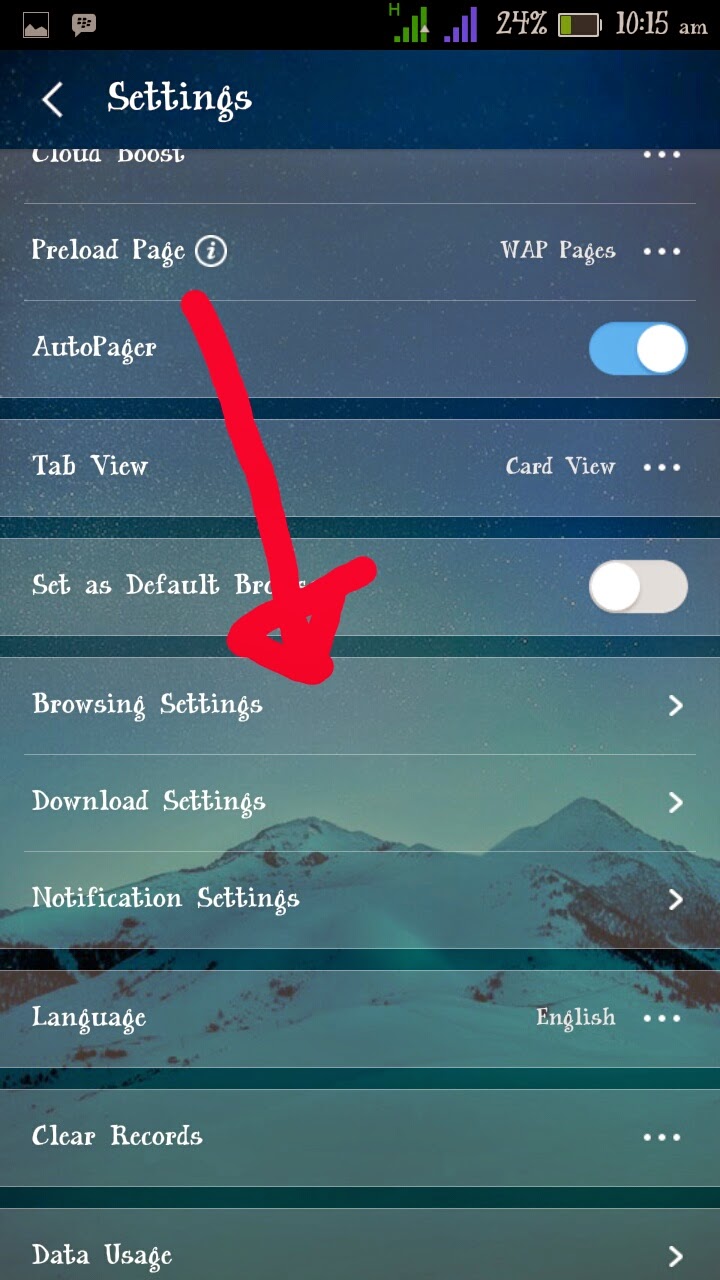
=> Launch your UC browser, press option and slide left, tap on settings, scroll down and select BROWSER SETTINGS
How to view desktop version of a webpage on Android Browser, Chrome and Uc browser
=> Now scroll down and select website preference, a window will open with some list of webpages such as yahoo, google, twitter and other
How to view desktop version of a webpage on Android Browser, Chrome and Uc browser
=> Tap on OTHERs and an option will display... Which is MOBILE and DESKTOP
  °select mobile, if you want to view web pages in a mobile version
  °select desktop if you wish to view web pages in desktop version.
You can as well change the default sites from mobile to desktop version

HOW TO VIEW A WEBPAGE IN DESKTOP VERSION USING ANDROID BROWSER.

There's no difference between Android Browser and Google Chrome, you can perform the same Google chrome procedure above on your Android Browser.

Hope you won't feel lazy to scroll up?... The better I know you are not lazy.

You can share your own idea with me, I love to learn from people

Friday, 1 May 2015

How To leave A Google+ Community On Mobile, Tablet and On Computer

Basically before i start with the tutorial, i will like to explain what Google+ Community is all about and why you should Join it
How To leave A Google+ Community On Mobile,Tablet And Computer

Google+ Community is a group created by Google+ users with the intention to share a common understanding and often the same language, manners, tradition and law. On the other hand, people creates Google+ Community for a purpose  such as

=>Tech Communities
=>Internet Marketing Communities
=>Social media Communities
=>Comedy/funny Communities
=>Inspiration Communities and many more. 

Why Do you Have to Join A Google+ Community?

Google Community has many branch and purposes which it was created, you might be a lover on one thing or the other and the best way to get inspirited by you hubby is to join a Community that deals with your hubby or your needs, so doing you will get to meet some many people of your field that will share ideas and knowledge with you and it might be a great help to you now or later in future.

Why Do I Have To Leave Google+ Community?

Well am not saying that you should leave all the Community you are in, but before you leave a Community, you should be able to differentiate between what you gain from the group. Leaving a Community should base on interest, whether the group offers value to your life or not, weather the group will inspire you or not. After you have come to a concussion you should know whether to leave or to stay in a Community

How To leave A Google+ Community step by step 

=>Login to your Google+ either from a mobile app or from a web browser, tap on the home to draw down the Options, if you are using a computer you should click on home to draw down the options

=>Scroll down careful and tap/click on Communities, a list of Communities will appear for you to select the one you intend to leave.

=>On the Community main menu tap on the three dot located at the right top or you can press the menu key on your Phone, and a list of option will prompt, tap/click on leave Community.

=>A warning menu will prompt just tap/ click leave and you will automatically leave the Community.

Can you share your Google+ Community experience with me? 

Wednesday, 29 April 2015

How To Upload Videos On YouTube Channel From Mobile Phone

Today I will be writing about how to upload video to a YouTube channel using a YouTube mobile application. YouTube is a platform that allows user of various kind to upload and share videos among other users and for business purposes, such as advertising for new product/goods , comedians for new comedy videos , music videos, local news video etc. 
How to upload video on YouTube With Mobile Phone

In the post I will teach you, step to step on how to upload a video to YouTube channel using android YouTube app, with a clear screenshot for a better understanding

Step 1) Open your YouTube application and click/tap on the YouTube menu, it's located at the top right side of the YouTube app as shown in the image below 
How to upload video on YouTube With Mobile Phone
Step 2) Scroll down and tap on uploads, a new menu  will prompt with an option at the top side. 

Step 3) Tap on the upload icon as indicated on the image below 
How to upload video on YouTube With Mobile Phone
Step 4) An option will prompt for you to select a video, select any one you wish to upload and it will automatically State uploading to your YouTube channel. Once the upload is successful, you will get a notification by gmail to inform that your video is ready to SHARE 

Hope it won't be difficult for you to do? 


Monday, 27 April 2015

How To Download Photo And Videos On Instagram With Instagram+

Instagram+ is a molded version of Instagram with much different which I will explain later on this post.
What You Need To Know About Instagram+ OGmods

Instagram is a social media platform with a large number of users across the world, Instagram as the main app dose not have any molded future, its normal and plan, you can Share your photo, videos and tag your friends. but you do not have access to download photos nor video from people you are following.

Instagram+ was created by OGmods and it links to instagram platform  with a standard  security to ensure a maximum protection of users information like the Original instagram. with instagram+ you can Share photo and video like usual. but there is a spacial future included on the instagram+ which allows you to  download photos and videos direct to your android device.

How To  Download Photo And Videos With Instagram 

==>Download and install Instagram+ Here

==>Open it and login with  your Password and username

==>Scroll down or up your instagram home page..... once you see any interesting  photo or video, tap on the three dot blow the photo or video and select download to start the download. as shown in the image above

==>All downloaded Photo and Videos are stored in the SD folder named OGmods

if you find this interesting, Share with friends !!

Monday, 20 April 2015

How To Flash Cwm Recovery On Bricked Infinix Hot Note_scatter file

Brick of mobile devices has become the order of the day, many complain coming up each day and hour about the New infinix hot note. User said their phone got Bricked on the process  of OTA System update while some got their phone Bricked when trying to Flash one file or the other. On the other hand, most of the complaint is about the OTA update which I think the company should look into it.
Fix bricked Infinix Hot Note


How this tutorial I will you teach, how to flash Cwm recovery on your Bricked Infinix Hot Note to enable you to restore your backup.

Requirements For The Tutorial

==) SP flashtools. Download HERE.
==) Adb drivers. Download Here
==) Infinix hot note scatter file Download HERE


INSTALLATIONS

==) Download and install the adb driver from the link provided above

==) Download infinix hot note scatter file as well on the link above

==) Download SP flash tool, and extract to your desktop

==) Double click on the extracted sp flash tool folder and open flash_tool  (the green icon)  as an administrator
Fix bricked Infinix Hot Note

==) Click on scatter loading and navigate to the location of your scatter file, then open.
Fix bricked Infinix Hot Note

==) Uncheck the other box, leave only the recovery and click on location no(7)
Fix bricked Infinix Hot Note

=) Select your cwm recovery and click on open.

Fix bricked Infinix Hot Note

==) Click to download and Turn off your phone and connect it to your PC while holding down the Vol + and button.
Fix bricked Infinix Hot Note

==) You will notice a color loading bar, just allow it to finish and an okay menu will prompt Just disconnect your phone and try booting into recovery..

Learn how to restore your cwm backup 

Sunday, 19 April 2015

How To Replace Gmail App With Inbox By Gmail On Android

In this tutorial you will learn how to replace Gmail app with Inbox by Gmail  on Android devices. It annoys the most to get double notification of a single mail on your android phone just because you want to use the Inbox by Gmail while you still have the System Gmail app installed on your device
how to replace Gmail app with Inbox by Gmail

Don't worry,I will put you through on how to remove System Gmail and replace it with Inbox by Gmail,

Some Requirements 

==) Rooted android device
==) link2sd
==) Uninstaller  apk or root Explore from playstore
==) Inbox by Gmail downloaded and installed on your device

Instruction On How w To  Remove System Gmail 

Using  Uninstall  
1) Open your uninstall app and locate the Gmail app
2) Tap and hold the Gmail app, an option will come up.
3) Then, Select uninstall app and wait for it to finish, after that reboot your device

Using Root  Explore
1) Open root Explore  tap on root and scroll down to System
2) Tap to open the System folder, scroll and select App, on the app folder you will find most of the android apk. Search and find Gmail
3) Tap or mark it and delete, once is done reboot.

How To Install Inbox by Gmail 

==>Download Inbox by Gmail at play store, install it and move to phone Memory
==>Download like2sd and install
==>Open like2sd and locate your Inbox by Gmail, tap and hold on it and an option to prompt with many options.
==>Tap on make System App and wait for it to finish, you will be asked to reboot
==> After that you are good to go with Inbox by Gmail as the only app for your Gmail messages

But if I many ask, which, among the two Gmail app do you prefer? Drop your comments. 

Saturday, 18 April 2015

How To Leave Whatsapp Group Or To Make A Group Member An Admin

I notice that some people do not know how to leave a whatsapp group or even make someone an admin on whatsapp group, on this tutorial you will learn how to leave whatsapp group or to make a group member an admin.
How to leave whatsapp group

Below are some of the reasons why many people leave a whatsapp group

1) Uninteresting  Group topic
2) Large number of messages pop-up
3) It hangs phone sometimes when the group  messages is much
5) Some don't like it due to data usage

How to Leave Whatsapp group

1) Tap on the group or click on the group to open
2) Press option to Select group information or tap on the group header if you are using android
3) Once the group  information shows up with the list of people in the group, scroll down to the bottom where you will find EXIT GROUP.
How to leave whatsapp group
4) Tap or click exit group followed by DELETE GROUP.

After the above procedure you will totally leave the group and you will not receive any notification from the group

How To Make A Whatsapp Group Member An Admin

1) Click or tap on the group to open, press option to Select group info
2) Scroll down to the name you want to make an admin.
3) Tap or click on the name, an option will prompt with name options available, tap or click on add to group admin to add the person. ( Should in case you want to remove a group member, you will find remove member on the option)

How to leave whatsapp group
Hope you find this helpful, always Create a group with a vital reason.

Thursday, 16 April 2015

How To Unbrick Your Bricked Infinix Hot Note

On this tutorial, you will learn how to unbrick your bricked INFINIX  HOT  NOTE  without much stress, but you need to read this tutorial carefully and follow it step to step
unbrick your infinix hot note

REQUIREMENTS
==>Rooted Infinix Hot note
==>CWM Recovery installed on your phone
==>SD Card
==>Stock Rom(Cwm backup)

How To Un-Brick Your Infinix Hot Note

==>Download the stock ROM for INFINIX HOT NOTE 
==>Copy to your SD card (root folder)
==>Boot your phone into recovery mode and install the downloaded stock ROM according to the procedure below

Note before you continue, make sure your battery is upto 70%

FLASHING PROCEDURE
==) Boot your phone into CWM Recovery Mode (Power Off your Phone and then Press and hold  Power Button + Volume Up Button until it boot to Recovery)

 Follow below steps for flashing Cwm ROM

==) Wipe data/factory Reset
==) Wipe cache Partition
==) Advance/ Wipe Dalvik Cache
==) Mount & Storage/ Format System
==) Now Press Back
==) Choose Zip From SDcard
==) Install Zip From SD Card
==) Select your Custom ROM which You want to Flash and wait for the Installation to finish
==) After, Then Reboot Your Phone and you are through

 should in case you cannot  boot to recovery, do the following procedure

==) Download  PdaNet @http://pdanet.co/a/
==) Download MTK Droid tools here
==) Manually Install MTK / Vcomm drivers Windows 64bit, Windows 32bit
==) Get the boot.img for infinix hot note
==) Still with the phone connected, extract and launch MTK Droid Tools on your Pc by clicking on (green logo)
==) MTK Droid tools should display your phone's details and the box at the bottom should be yellow
==) If it doesn't displace, ensure the drivers were correctly installed then boot the phone into factory mode (volume down + power button)
==) MTK should now detect and display the phone's details
==) Click ROOT at the bottom, select Yes and Grant to any prompt on phone or PC and wait till the box turns green
==) When the box turns green, click on the root, backup, recovery tab
==) Click to choose boot.img file
==) Click Recovery and Boot then navigate to the boot.img  and select it
==) Click yes to every prompt
==) When asked, click yes to boot into recovery mode
==) now you have Clockworkmod recovery installed on the bricked Infinix hot note from which you can do a restore,
==) Wipe cahe partiton
==) Wipe davlink cache
==) Reset to factory state or flash a new stock which you can get from the link above.

in case if you encounter any problem, please drop a comment.

Wednesday, 15 April 2015

Latest: Get Upto 100gb On Your Airtel Sim

Hello readers I want you all to use the trick wisely. you can make use of the trick on all Internet enabled device, but the trick can only be done on android device, which you can later make use on other devices

This trick  is all about imie tweaking, i assumed that most of you knows how to tweak imie on android device.?

Requirements For The Trick 
===)  Airtel sim card
===) Android MTK device or any other
===) Moble uncle for MTK device
===) MTK Droid Tools for none MTK device

The Imie To Tweak 

==) 869878000166622 
==) 8698780000157022 
==) 869878000133677
==) 869878000166555
==) 869878000166688

Send Join to 141 and 2gb of data will be given to you 

How to make it work on other Internet enabled device 

You can inset the sim which  you have load gb on any of your device and flex. what I meant about other devices is:
symbian
java
window
Idevice
laptop
tablet etc

kindly Share this post with other airtel users and friends as well as family


Monday, 30 March 2015

Download Modern Combat5 For Free On Playstore

Good news to game lovers, today you can download and play Modern Combat5 from play store
Modern Combat5

Modern Combat5 is among the leading action game on the android market today, the graphics is okay, you can testify it yourself when you play the game.


Honestly I love playing HD games most especially when it comes to action games, such as Brother in aim, NOVA freedom and Modern Combat. But these Modern Combat5 in question is tough for my to finish.

Some Basic Things You Need To Know About Modern Combat5 

==) It can play both on rooted and none rooted android devices
==) It Can play on any android running on latest version.... (it might not play on some stock rom)
==) Your device most have enough space both on SD and PM (Phone Memory)
==) You can play both single and multplayers

How To Install It 

Download Modern Combat5 from playstore

After downloading it will automatically installe on your device

Once the installation is successfully, tap on the game icon to Launch the games. It might request for a network connection to start

Enjoy and Share with friends 

Airtel Free MB Code For 2015....

I can’t say the amount but just dial the below code you can share your amount with us here in our comment box.
Airtel Free MB Code 2015

1. Migrate to Club10 by dialing *166#
2. After just migrating dial *141*11*20#
3. This trick is perfectly working Or Just Dial These Straight Codes BELOW Accordingly;

1. Dial *141*13*50# And Press The Call SendKey

2. Dial *141*13*100# And Press The Call Send Key

3. Dial *141*13*200# And Press The Call Send Key

4. Dial *948*1# And Press The Call Send Key

5. Dial *141*13*1# And Press The Call Send Key

6. Dial *141*712*007# And Press The Call Send Key

7. Dial *141*712*001# And Press The Call Send Key

8. Dial *141*712*0# And Press The Call Send Key

9. Dial *885*0# And Press The Call Send Key10. Dial *223# And Press The Call Send Key 

Sunday, 29 March 2015

Do You Miss 2Go On Your Android Device Due To Updates_Downlaod Previous Version Here

I notice, that many android users have abandoned 2go instant messaging application due to some update, today I have a vital information for you, you can use the previous version of 2Go on your android phone smoothly and happily

The previous 2go instant messaging application which is version 1.0.13 is the best you can have on your android device, reason being that you can do the following
Best 2Go app for android users


==) You can put your status to Away, Offline and Online yourself
==) You can put your picture without crop, on like the New version
==) You can choice to receive notification after you have logout or not
==) you can put name of site on your status update
==) With the old version, you will automatically know who is online or Offline without opening the person profile

Some will ask, what about the name changing in the New version? 

Well the name changing is not available on the old version, but you can do this. Download and install the New version which allows you to change name, then after changing your name you can uninstall and install back the previous version and Enjoy your 2go

How and Where Can I Get Previous Version 

You can get it right here....

=) Install it as usual
=) Launch it, input your details
=) And sign in

Share with 2Go lovers